Sunday, 10 January 2016

What is ACSII

Short for American Standard Code for Information Interexchange, ASCII is an standard that assigns letters, numbers, and other characters within the 256 slots available in the 8-bit code.


Char Dec Binary Char Dec Binary Char Dec Binary
! 033 00100001 A 065 01000001 a 097 01100001
" 034 00100010 B 066 01000010 b 098 01100010
# 035 00100011 C 067 01000011 c 099 01100011
$ 036 00100100 D 068 01000100 d 100 01100100
% 037 00100101 E 069 01000101 e 101 01100101
& 038 00100110 F 070 01000110 f 102 01100110
' 039 00100111 G 071 01000111 g 103 01100111
( 040 00101000 H 072 01001000 h 104 01101000
) 041 00101001 I 073 01001001 i 105 01101001
* 042 00101010 J 074 01001010 j 106 01101010
+ 043 00101011 K 075 01001011 k 107 01101011
, 044 00101100 L 076 01001100 l 108 01101100
- 045 00101101 M 077 01001101 m 109 01101101
. 046 00101110 N 078 01001110 n 110 01101110
/ 047 00101111 O 079 01001111 o 111 01101111
0 048 00110000 P 080 01010000 p 112 01110000
1 049 00110001 Q 081 01010001 q 113 01110001
2 050 00110010 R 082 01010010 r 114 01110010
3 051 00110011 S 083 01010011 s 115 01110011
4 052 00110100 T 084 01010100 t 116 01110100
5 053 00110101 U 085 01010101 u 117 01110101
6 054 00110110 V 086 01010110 v 118 01110110
7 055 00110111 W 087 01010111 w 119 01110111
8 056 00111000 X 088 01011000 x 120 01111000
9 057 00111001 Y 089 01011001 y 121 01111001
: 058 00111010 Z 090 01011010 z 122 01111010
; 059 00111011 [ 091 01011011 { 123 01111011
< 060 00111100 \ 092 01011100 | 124 01111100
= 061 00111101 ] 093 01011101 } 125 01111101
> 062 00111110 ^ 094 01011110 ~ 126 01111110
? 063 00111111 _ 095 01011111 _ 127 01111111
@ 064 01000000 ` 096 01100000      


Extended ASCII uses eight instead of seven bits, which adds 128 additional characters. This gives extended ASCII the ability for extra characters, such as special symbols, foreign language letters, and drawing characters as shown below.
Extended or Higher ASCII characters and codes
Higher ASCII chart

Thursday, 7 January 2016

How to find out if someone has been snooping in your Gmail


Your Gmail account probably contains some sensitive information—emails from your friends and family members, information about accounts for other services, candid pictures, you name it. What if someone else has been poking around in there? Fortunately, Google gives you the tools necessary to find out.
First, log into your Gmail account from your computer's Web browser. Once you get to your inbox screen, scroll to the bottom, and look for the link labelled "Details" in the lower-right corner.
gmail details

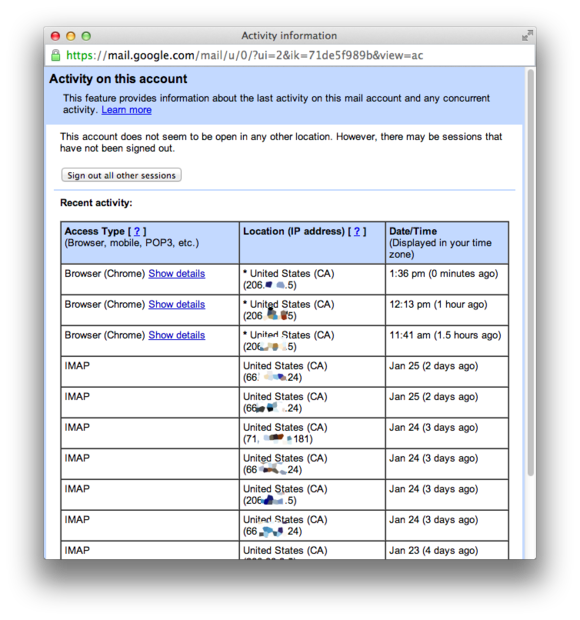
Click the link, and you'll get a pop-up window that shows the last time someone accessed your Gmail account, along with how they accessed it (through a browser, an email app, and so on), their IP address, and when they access it. If something looks fishy, you'll want to change your password as soon as humanly possible.
While you're at it, you may want to turn on two-factor authentication for your Google account and give yourself an extra layer of protection.

What is a Hex Editor?


Text versus Binary
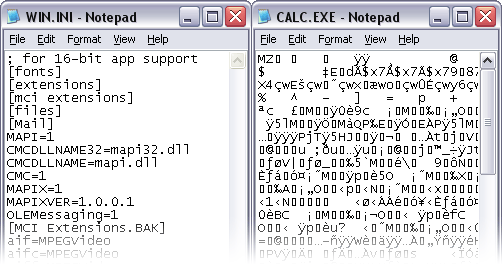
Figure 1 - Shows a text file loaded in notepad on the left (human readable) versus a binary file on the right.
A hex editor is a computer program used to view and edit binary files. A binary file is a file that contains data in machine-readable form (as apposed to a text file which can be read by a human - see Figure 1). Hex editors allow editing the raw data contents of a file, instead of other programs which attempt to interpret the data for you. Since a hex editor is used to edit binary files, they are sometimes called a binary editor or a binary file editor. If you edit a file with a hex editor, you are said to hex edit the file, and the process of using a hex editor is called hex editing. A typical hex editor has three areas: an address area on the left, a hexadecimal area in the center, and a character area on the right (see Figure 2). In the most powerful hex editors, these areas can be configured to display other values. Every file on your machine is made up of a series of bytes. A byte is just a number that can store a value from 0 up to 255 inclusive. Every byte in a file is assigned a number, called its address, starting at 0 for the first byte of the file, 1 for the second byte, etc.
Hex Editor
Figure 2 - Shows a hex editor with addresses on the left, a hexadecimal area in the middle, and a character area on the right.


Hexadecimal Area

The middle hexadecimal area is the most commonly used area of a hex editor. It lists each byte of the file in a table, usually sixteen bytes per line. If Figure 2, the first 8 bytes of the file would be '4D 5A 90 00 03 00 00 00'. Each byte is listed in a special notation called hexadecimal notation, sometimes called hex code. Most numbers in our world are represented in decimal or base-10 notation, meaning we use 10 different digits (0 up to 9). Hexadecimal or base-16 notation uses 16 different digits: 0 up to 9 and then the letters A, B, C, D, E, F to represent 10, 11, 12, 13, 14, and 15. Numbers in hexadecimal notation commonly have an 'h' written after them, or an '0x' written before them to indicate that they are in base-16 notation (for example: 1Fh or 0xA7). To convert a 2-digit hexadecimal number to a regular number, multiply the first digit by 16 and add it to the second digit. For example, 3A = 3*16 + 10 = 58.

Character Area

Although each byte in a file can store a value from 0 to 255, what matters is what this data means. One way bytes are used is to assign a different letter or symbol to each possible value. For example, the byte value 65 could represent the character 'A' and the value 33 could represent the symbol '!'. The byte values 0 to 127 are usually assigned letters and symbols according to a standard called ASCII (although other standards exist). The character area on the right of the hex editor displays the ASCII representation of each of the bytes in the hexadecimal area. For example in Figure 2, the second byte of the file (5A) is displayed as 'Z' in the character area. Some byte values represent special codes that cannot be displayed in the character area. If there is no character that can be displayed, usually a '.' is displayed in the hex editor.

Address Area

The address area on the left side of the hex editor displays the address of the first byte of each line. The addresses are usually displayed in hexadecimal format, but many hex editors can display addresses in decimal format as well. In Figure 2, the address of the first byte of the first line would be 0, and the address of the first byte of the second line would be 0010h (or 16 in decimal format). Remember that addresses start from 0 so if you have a file of 512 bytes, the byte addresses would range from 0 up to 511. Some hex editors also have a ruler along the top of the hex editor to help you know the addresses of other bytes in the file (the orange bar in Figure 2).

Editing Data

Data can be edited in a hex editor just like a normal text editor. A hex editor has a cursor that can be moved by clicking with the mouse or using the cursor keys. Position the cursor over the byte you want to edit, and type the value you want to change to using the keyboard. The cursor can be switched between the hexadecimal area and the character area by pressing the 'Tab' key. When the cursor is in the hexadecimal area, you have to enter byte values in hexadecimal notation, but when the cursor is in the character area, you can enter regular characters just like a text editor. Good hex editors always have an Overwrite mode and an Insert mode. In Overwrite mode, typing values on the keyboard just changes the existing byte values, but in Insert mode, typing on the keyboard inserts new bytes into the file. You can switch between Insert and Overwrite mode by pressing the 'Ins' key. Data can also be edited by selecting a set of bytes. Selections are made just like a text editor: click and drag the mouse or hold the 'Shift' key while moving the cursor. Once a selection has been made, the file can be edited using the standard Cut, Copy, and Paste commands on the Edit menu.

Advanced Features

The best hex editors in the world contain a whole host of other tools to help you work with binary files. For example, you could use a Find tool to locate certain bytes in a file, or a Binary Comparison tool to compare binary bytes between two files. Some hex editors can even edit the bytes of hard drives and processes just like you would a binary file. The most advanced feature of hex editors is now the ability to place a template over a file that allow you to understand what the bytes of a binary file actually mean.


Monday, 4 January 2016

Back up the registry

Windows 8.1 and Windows 8
  1. Swipe in from the right edge of the screen, and then tap Search. Or, point to the upper-right corner of the screen, and then click Search.
  2. In the search box, type regedit.exe, and then press Enter. If you are prompted for an administrator password or confirmation, type the password or provide confirmation.
  3. In Registry Editor, locate and click the registry key or subkey that you want to back up.
  4. Click File > Export.
  5. In the Export Registry File dialog box, select the location where you want to save the backup copy to, and then type a name for the backup file in the File name field.
  6. Click Save.
Windows 7 and Windows Vista
  1. Click Start, type regedit.exe in the search box, and then press Enter. If you're prompted for an administrator password or confirmation, type the password or provide confirmation.
  2. In Registry Editor, locate and click the registry key or subkey that you want to back up.
  3. Click File > Export.
  4. In the Export Registry File dialog box, select the location where you want to save the backup copy to, and then type a name for the backup file in the File name field.
  5. Click Save.
Windows XP
Follow these steps to create a system restore point:
  1. Click Start, click Run, type %SystemRoot%\system32\restore\rstrui.exe, and then click OK.
  2. On the Welcome to System Restore page, click Create a restore point, and then click Next.
  3. On the Create a Restore Point page, type a name for the restore point and then click Create.
  4. After the restore point is created, click Close.
Note If System Restore is turned off, you receive a message that asks whether you want to turn on System Restore now. Click Yes. Then, in the System Properties dialog box, click to clear the Turn off System Restore check box, click OK, and then repeat this step. For more information, see How to turn off and turn on System Restore in Windows XP.
Restore the registry
Windows 8.1 and Windows 8
  1. Swipe in from the right edge of the screen, and then tap Search. Or, point to the upper-right corner of the screen, and then click Search.
  2. In the search box, type regedit.exe, and then press Enter. If you are prompted for an administrator password or confirmation, type the password or provide confirmation.
  3. In Registry Editor, click File > Import.
  4. In the Import Registry File dialog box, select the location where you saved the backup copy to, click to select the backup file, and then click Open.
Windows 7 and Windows Vista
  1. Click Start, type regedit.exe in the search box, and then press Enter. If you're prompted for an administrator password or confirmation, type the password or provide confirmation.
  2. In Registry Editor, click File > Import.
  3. In the Import Registry File box, select the location where you saved the backup copy to, click to select the backup file, and then click Open.
Windows XP
Use System Restore to undo registry changes in Windows XP:
  1. Click Start, click Run, type %SystemRoot%\System32\Restore\Rstrui.exe, and then click OK.
  2. On the Welcome to System Restore page, click Restore my computer to an earlier time (if it is not already selected), and then click Next.
  3. On the Select a Restore Point page, click the system checkpoint. In the On this list select the restore point area, click an entry that is named "Guided Help (Registry Backup)," and then click Next. If a System Restore message appears that lists configuration changes that System Restore will make, click OK.
  4. On the Confirm Restore Point Selection page, click Next. System Restore restores the previous Windows XP configuration and then restarts the computer.
  5. Log on to the computer. When the System Restore confirmation page appears, click OK.

What is a MAC Address?

In a local area network (LAN) or other network, the MAC (Media Access Control) address is your computer's unique hardware number. (On an Ethernet LAN, it's the same as your Ethernet address.) When you're connected to the Internet from your computer (or host as the Internet protocol thinks of it), a correspondence table relates your IP address to your computer's physical (MAC) address on the LAN.


All devices on the same network subnet have different MAC addresses. MAC addresses are very useful in diagnosing network issues, such as problems with IP addresses.
MAC addresses are useful for network diagnosis because they never change, as opposed to a dynamic IP address, which can change from time to time. For a network administrator, that makes a MAC address a more reliable way to identify senders and receivers of data on the network.


On wireless networks, a process called MAC filtering is a security measure to prevent unwanted network access by hackers and intruders. In MAC address filtering, the router is configured to accept traffic only from specific MAC addresses. This way, computers whose MAC addresses are approved will be able to communicate through the network—even if they were given a new IP address by DHCP.
Meanwhile, a hacker who's hijacked a network IP address will be blocked because their MAC address will not be on the approved list and will be filtered out.