Using Windows Shortcut Arrow editor:
Windows Shortcut arrow editor is the best ever app to remove the Shortcut arrow from desktop icons, its simple and easy. This app supports Windows XP, Vista, 7, 8 and even 10. A small window appears and asks us to choose one.
Step 1: Download Windows Shortcut Arrow Editor.
Step 2: UnZip the downloaded file, choose your Operating system and choose 32Bit or 64 bit.
Find whether your PC is 32bit or 64 bit -> Here
Step 3: Run the App.
Step 4: You’ll get this Window, Choose NO Arrow

If this app doesn’t work, then go with this registry edit to remove the Shortcut Arrows in your Desktop icons.
Remove Shortcut Arrows from Desktop Icons using REGEDIT:
When the App fails, Don’t worry! We have some other idea to deal with these shortcut arrows. Just Do some edit with this registry could help removing the Shortcut arrows from Desktop icons.
Step 1: Goto Registry edit by typing Regedit in RUN.
Step 2: Navigate to this Path : HKEY_LOCAL_MACHINE – SOFTWARE – Microsoft – Windows – CurrentVersion – Explorer – Shell Icons
Step 3: Right click the “Explore” folder -> New -> Key.

Step 4: Now at the right side window Right click -> New -> String value.

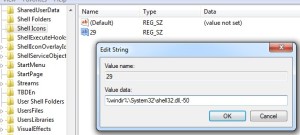
Step 5: Type the value name = 29. and Value data = %windir%\System32\shell32.dll,-50


No comments:
Post a Comment