In Computer | PC
- Click on the down arrow (as shown in the picture below) and click Settings

- Click on Videos
- Under “Auto-Play videos” Choose OFF

in Android Phones | tablet
To Turn Off auto-play Videos on Android phone or tablet: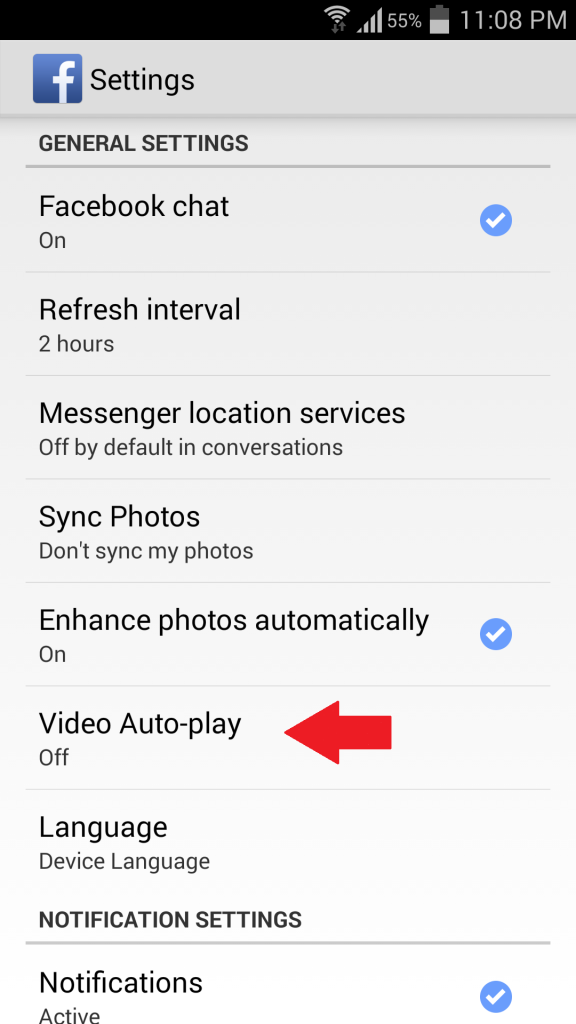
- Open the Facebook app in Android Phone
- Tap the three horizontal lines
- Scroll down and tap App Settings
- Tap Video Auto-playYou could find 3 Options there,On – This means Video will be Autoplayed in both Mobile Data and Wi-fi
Wi-fi Only – Videos will be Autoplayed Only through Wi-fi
OFF – Turning Off the Autoplay - Choose OFF in Auto-playNote: If you can’t see the Video Auto-play settings on your Android phone, log out of the Facebook app. When you log back into Facebook, Video Auto-play will be there in App Settings.
#in iPhone | iPad
To Turn Off auto-play Videos on iPhone or iPad:- Open the Facebook app in iPhone or iPad
- Tap the three Horizontal lines.
- Scroll down and tap App Settings
- Tap Video Auto-playYou could find 3 Options there,On – This means Video will be Autoplayed in both Mobile Data and Wi-fi
Wi-fi Only – Videos will be Autoplayed Only through Wi-fi
OFF – Turning Off the Autoplay - Choose OFF in Auto-play Video


No comments:
Post a Comment