Wednesday, 25 November 2015

Permanently Delete Files From Hard Disk

Using Eraser


To make sure a file is truly gone, a number of tools are available. Eraser is a free and easy-to-use solution that will overwrite your private information with random patterns until the data is no longer recoverable. It works with nearly every version of Windows and offers a number of methods of overwriting your data, including methods approved by the Department of Defense.
Once installed, Eraser integrates nicely into Windows. Whenever you want to securely erase Using Eraser your data, follow these steps.
1. Navigate to the files or folders that you want to securely erase.
2. Right-click on the files and/or folders and an Eraser menu will appear.
3. Highlight and click Erase in the Eraser menu.


Eraser will automatically create the secure erase task and execute it immediately. You will be notified in a popup window when the task is complete and the files are permanently erased.
Eraser has a number of settings and options that you can configure, including securely deleting recycle bin contents and scheduling and automating secure deletion tasks.

Step-by-Step: Using SDelete

For users who don't need graphical interfaces, Microsoft has a downloadable command-line tool called SDelete. Here's how to use this tool.
1. Click Start > Run... , type cmd and press OK or Enter (Return). (Windows Vista and Windows 7 users can just click Start and type cmd in the Windows Search box.)
2. Navigate to where you have SDelete downloaded. For example, if it's located at C:\cmdtools, type cd C:\cmdtools, and press Enter.
3. Now type sdelete <path to file or directory>, and press Enter, where <path to file or directory> is a standard Windows path. For example, to delete C:\mysecuredata.txt, you would type sdelete c:\mysecuredata.txt, and press Enter.
4. Once they're deleted, you will receive confirmation that your files or folders have been permanently deleted, and you're done!
Now that you have the right tools for the job, you can feel confident in knowing that your data has actually been removed from your hard disk and will no longer be recovered by anyone (not even by you)

Tuesday, 24 November 2015

Best Password manager online for Free

Password managers:

If you want to keep your online accounts safer, you have to use the password manager. The password manager manages all your online account username and passwords and it will provide a master password. You need to remember the master password alone to unlock the password manager. You don’t need to remember all the passwords for your online accounts.

Password managers online:

Online password managers available online hence you can get it anywhere you go with the Internet, and no software installation required. There are both free and paid password managers online. Choose the password manager for your choice.

1. PASSPACK Password Manager

Passpack is a highly secure way to manage and organize your passwords. Passpack is built on AES-256 Encryption and Host Proof Hosting, ensuring that your sensitive data are being never accessible to anyone but you.
 Here for PASSPACK Password manager online.

2. LASTPASS Password Manager

LASTPASS is the best online password manager online. LASTPASS have also implemented AES 256-bit encryption with routinely-increased PBKDF2 iterations. All sensitive data is encrypted and decrypted locally before syncing with LastPass.
Sign Up! Here for LASTPASS Password manager online.


Fix Laptop automatic Shutdown Problem

Why Unexpected  Shutdown of my Windows PC?

       My Friend came across with a serious issue of his ” Laptop getting automatic shutdown “, then I looked on to his PC and found the reason.

Reasons for Unexpected shut down!

  • This problem is frequently found in laptops when the user uses toFix Laptop automatic Shutdown Problem access many applications at a time and this will increase the load to PC. When the system starts, the Operating System will load all the programs such that the OS cannot load the programs and causes frequent shutdown without any notification.
  • There may be malware which uses your RAM to the maximum.
  • The laptop many shutdown due to overheating or due to some loading problem during start-up.

Fix Laptop automatic Shutdown Problem:

 Fix 1:
          There are many Malware applications which enters your PC and runs many unwanted applications and consumes more RAM, hence heavy load to the PC which causes sudden shut down. My best advice is to ” Uninstall Unwanted applications from your PC ” this will gradually decreases the load and no PC automatic shutdown problem.
Bonus Tips: In case of over heating, Prefer cooler pad. This will definitely reduces your Laptop heat.
Fix 2:
  Another way to solve this problem is very easier and free of cost.Follow the steps given to solve this problem.
  1. Go to start and type “msconfig” and click Enter.
  2. A new window will be displayed and select the tab “Start-up”.
  3. Now Click the option “Disable all” option below.
Fix Laptop automatic Shutdown Problem
After using this command shutdown your system .By using this tips you can solve this problem and  you will never see the problem of frequent shutdown in your laptops.This will work for all the versions of windows 7.This will reduce the load to the memory then the laptop will never shutdown again.

HOW TO IMPROVE TYPING SPEED

USE APPROPRIATE FINGERS:
Use both hands as possible. Using just 2 or 3 fingers slow down your typing speed. In the home row i.e., ASDF row, use left hand fingers for using A, S, D and F, right hand fingers for J, k, L and ; using appropriate fingers helps you to type fast. The picture shows how to use all fingers throughout the keyboard.FINGER POSITIONS
DON’T LOOK AT THE KEYBOARD
Try to learn the keyboard layout. Don’t look at the keyboard while typing. Initially you may feel little difficult to do so. If you keep on doing this, you will get used to it and will start typing like a pro. try to feel F and H on your keyboard correctly, Since it is in the center of the home row.

PRACTICE
Nothing goes well without practice.Practice is more important to improve your typing speed. Just practice 30 minutes a day and within a week you might see a drastic improvement in your typing speed.

GOOD POSTURE
Posture matters a lot. Poor posture may degrade your typing speed. Make sure you sit straight and your wrist is on the keyboardyour fingers are moving through it.

AVOID SHORT HAND
There is no person in this world who is not using social network website to chat. Consider  this as an opportunity. Whenever you chat, don’t use short hand. Instead, use complete sentence, capitalization and punctuation to make your chat perfect.

CONSIDER TYPING AS YOUR HOBBY
Whenever you feel like boring take a book or magazine and type the contents into notepad or word. you may also create a own blog of yours and take a chance to improve your typing speed while blogging.

TAKE ONLINE TEST
Huge websites are available that allows you to take typing speed test online. Make use of keyhero, TyperacerGoodtyping, Typing Test Online and 10 Fast Fingers. These websites would be very useful for beginners.

How to skip Login screen in Windows

Skip Login screen in Windows 8

  • Click search and type netplwiz“.
  • After typing the command based on the user now a dialog box will be displayed.
  • Disable the option “User must enter the username and password to use this computer”
skip-login-screen

Skip Login screen in Windows 8

  • Click search and type netplwiz“.
  • After typing the command based on the user now a dialog box will be displayed.
  • Disable the option “User must enter the username and password to use this computer”
skip-login-screen

Skip Login screen in Windows 7 and vista

  • Windows 7 and vista users ,go to the start menu and type netplwiz“.
  • After typing the command based on the user now a dialog box will be displayed.
  • Disable the option “User must enter the username and password to use this computer”

Skip Login screen in Windows XP:

  •  Windows XP user click the start menu and type “control userpasswords2” then press the enter key.
  • After typing the command based on the user now a dialog box will be displayed.
  • Disable the option “User must enter the username and password to use this computer”

Skip Login screen in Windows 7 and vista

  • Windows 7 and vista users ,go to the start menu and type netplwiz“.
  • After typing the command based on the user now a dialog box will be displayed.
  • Disable the option “User must enter the username and password to use this computer”

Skip Login screen in Windows XP:

  •  Windows XP user click the start menu and type “control userpasswords2” then press the enter key.
  • After typing the command based on the user now a dialog box will be displayed.
  • Disable the option “User must enter the username and password to use this computer”

Pen drive not showing full memory Space


Pen Drive Showing Less Space than Actual

Go search your Old Pendrives and try this.
Just follow the below given instruction to recover your Pend Drive Back.
 1. Download and Install HP USB Disk storage format tool 
2. Plugin your Pen drive.
3. Select your Device, File System and Click Start.
PEN-DRIVE-NOT-SHOWING-FULL-MEMORY-hp usb
If this Software didn’t work, Then try this one below. These steps makes your pendrive to show actual size.
1.Plug in your pen drive to your PC.
2.Goto “RUN” Type diskmgmt.msc to open Disk Management .
3.Select your drive there, Right click and ” Delete volume”.
4.This Process will delete the Total memory space allocated.
5.Now right click and select “Create Volume” to create New space.
6.Select the file system and format the partition.

How to remove shortcut arrow from desktop icons

Using Windows Shortcut Arrow editor:

Windows Shortcut arrow editor is the best ever app to remove the Shortcut arrow from desktop icons, its simple and easy. This app supports Windows XP, Vista, 7, 8 and even 10. A small window appears and asks us to choose one.
how to remove shortcut arrow in windows (1)
Step 1: Download Windows Shortcut Arrow Editor.
Step 2: UnZip the downloaded file, choose your Operating system and choose 32Bit or 64 bit.
Find whether your PC is 32bit or 64 bit -> Here
Step 3: Run the App.
Step 4: You’ll get this Window, Choose NO Arrow
how to remove shortcut arrow in windows (1)
If this app doesn’t work, then go with this registry edit to remove the Shortcut Arrows in your Desktop icons.

Remove Shortcut Arrows from Desktop Icons using REGEDIT:


When the App fails, Don’t worry! We have some other idea to deal with these shortcut arrows. Just Do some edit with this registry could help removing the Shortcut arrows from Desktop icons.
Step 1: Goto Registry edit by typing Regedit in RUN.
Step 2: Navigate to this Path : HKEY_LOCAL_MACHINE – SOFTWARE – Microsoft – Windows – CurrentVersion – Explorer – Shell Icons
Step 3: Right click the “Explore” folder -> New -> Key.
how to remove shortcut arrow in windows (1)
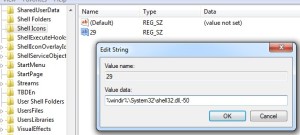
Step 4: Now at the right side window Right click -> New -> String value.how to remove shortcut arrow in windows (1)
Step 5: Type the value name = 29. and Value data = %windir%\System32\shell32.dll,-50 
how to remove shortcut arrow in windows (1)

Check your Internet speed

Use speedtest.net

Checking internet speed is not that Hard. Just follow the below given 3 steps to find your internet speed in a minute
Step 1: Just Open your browser and goto : speedtest.net and click on the BEGIN TEST button.
How to check Internet step 0
Step 2: You’ll find the Arrow Increasing towards the speed.
How to check Internet step 0
Step 3: Speed test will get finished and you’ll get a small stats screen showing Download speed and Upload speed at the Top Right corner. 
How to check Internet step 0

VLC Media Player Tips and Tricks

Image result for vlc

1. PLAYING YOUTUBE VIDEOS

Isn’t it interesting that VLC allows user to play YouTube videos. To do so, follow the steps given below.
  • Open YouTube and copy the URL of the video that you want to play.
  • Open VLC media player. Select Media->Open network stream
  • Paste the URL and click on ‘Play’ option and watch the video.

2. CONVERTING MEDIA FILES

VLC allows user to convert a media file to another formats. It offers a variety of format, allowing users to convert it to their desired format.
VLC Features
To format a video file, click on Media-> convert/save. Choose a media file that you want to convert and click ‘convert/save’. In the dialog box appears select the desired format to which the file has to be converted.

3. RECORDING DESKTOP

It is capable of recording a desktop. Select Media->convert/ save or press ‘Ctrl+R’. in the ‘Capture Devices’ tab select capture mode as ‘Desktop’ and click on ‘Convert/Save’ button. Select the profile as MP4 and a destination file of your choice. Click on start button to record the desktop.

4. BOOKMARKING VIDEOS

Bookmarking a video may be useful, because you could watch a certain part of the video when you feel like. To bookmark a video select Playback->custom bookmarks->manage bookmark or ‘Ctrl+B’ , while the video is playing. Click on ‘start’ from the point where you want to bookmark. You can find the book marked video in playback->custom bookmarks->(bookmarked video).

5. PLAYING PUZZLE GAME

PUZZLE_1441367601791
Doesn’t this sound funny??  Yes, VLC allows user to play puzzle game by setting up puzzle pieces. Select Tools -> Effects and filters -> Video effects. In video effects select the tab ‘Geometry’. Check the Puzzle Game option and select the number of rows and columns of your wish, click close.

6. ROTATING A VIDEO

vlc Tips and features
Many people wonder about rotating video. VLC media player makes it possible. To rotate a video select Tools -> Effects and Filters -> Video Effects. Check the rotate option in ‘Geometry’ tab and select the desired angle to which you want to rotate the video.

7. SETTING A VIDEO AS WALLPAPER

Why do we always set a picture as our desktop wallpaper. Let’s try setting a video as wallpaper. Open VLC media player. Select Tools -> Preferences or ‘Ctrl + P’. in the left pane of the window select ‘video’ and output as ‘DirectX (DirectDraw video output). Now, restart VLC. The next time when you play a video right-click, select Video -> set as wallpaper. As you select this option the video starts playing on your desktop as wallpaper.

8. PLAYING VIDEO AS ASCII CHARACTERS

Playing a video as ASCII characters is not a good idea, but it is fun watching. To enable this, select
Tools -> preferences. In video select output as ‘Color ASCII art video output’. To disable this, select ‘Automatic’ as output.

9. INCEPTION TRICK

INCEPTION_1441367588468
Open VLC and press ‘Ctrl + N’. Now type ‘screen://’ in the space and click play. Series of screen shots are taken which gives inception feel.

10. SNAPSHOTS AND RECORDING VIDEOS

One could take snapshots and record the video in VLC media player by using the tools. To record a video, press Ctrl + R and for snapshot, press Alt + Ctrl + S.
Here are few shortcuts for easy access:
[M] – Mute On/Off
[Ctrl + Up arrow] – Turn volume up
[Ctrl + down arrow] – Turn volume down
[Ctrl + Q] – Quit program
[Ctrl + A] – Open capture device
[Ctrl + S] – Preferences
[F] – Full screen
[Alt + Left arrow] – Short forward jump
[Alt + Right arrow] – Short backward jump
[Ctrl + Left arrow] – Long forward jump
[Ctrl + Right arrow] – Long backward jump
[Ctrl + I] – Stream media info
[Space bar] – Pause/Play
[+] – Play faster
[-] – Play slower
There are lot more There, please share it in comments if you know something!!

Free Websites to Watch Movies Online!

Iglo movies – 1 Watch Movie OnlineWatch Movie Online for Free

I recommend movie freaks to visit this website at least once. One of the websites with a large collection of High Definition movies. Iglo movies offer lot number of movies with better picture quality. Movies are updated frequently into its database. Just click on the movie that you wish to watch. Select option ‘watch movie now’ and enjoy the movie.

Watch Movie Stream – 2 Watch Movie OnlineWatch Movie Online for Free

New movies are updated to this website on daily movies. Movies can also be filtered by genres. Most popular movies are listed for the ease of users. It offers movies of all genres. more than thirty-five genres are available. Just select the movie you need to watch and click the play button to watch the movie. Most of the movies are available in High Definition.

Movies found Online – 3 Watch Movie OnlineWatch Movie Online for Free

Other than movies ‘Movies Found Online’ website includes short films, documentaries, TV series & shows and videos that are viral currently. Many people are fond of watching TV series and shows. Series episodes are updated frequently. Large collection of documentaries that are popular since 1940’s also available.People who like to watch movies that belong to 90’s should make use of this Website.

Watch 32 HD – 4 Watch Movie Online Watch Movie Online for Free

As the name suggests it offers many HD Movies. All you have to do watch movie in ‘Watch 32 HD’ is to click on the desired movie. It starts playing immediately after clicking on the movie. The database of this website is not as large as other websites. Yet offer most of the popular and block buster movies.

Snag Films – 5 Watch Movie OnlineWatch Movie Online for Free

Snag films consist of movies and shows. Click on the desired movie or show and watch it. All the episodes are updated simultaneously as it is aired on TV. Snag films also offers many reality shows. It has been rated as the top website twice to watch movies and shows.

Turn Off Facebook Autoplay Videos

In Computer | PC

  • Click on the down arrow (as shown in the picture below) and click Settings
Autoplay Videos in Facebook
  • Click on Videos
Disable Autoplay Videos in Facebook
  • Under “Auto-Play videos” Choose OFF
Disable Autoplay Videos in Facebook


in Android Phones | tablet

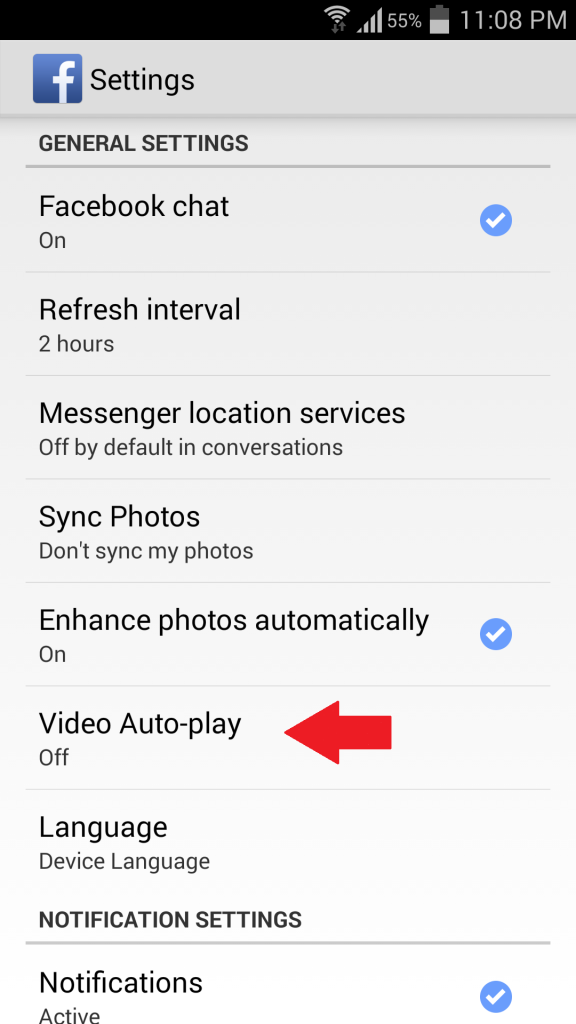
To Turn Off auto-play Videos on Android phone or tablet:Disable Facebook Autoplay Android
  1. Open the Facebook app in Android Phone
  2. Tap the three horizontal lines
  3. Scroll down and tap App Settings
  4. Tap Video Auto-playYou could find 3 Options there,On – This means Video will be Autoplayed in both Mobile Data and Wi-fi
    Wi-fi Only
    – Videos will be Autoplayed Only through Wi-fi

    OFF – Turning Off the Autoplay
  5. Choose OFF in Auto-playNote: If you can’t see the Video Auto-play settings on your Android phone, log out of the Facebook app. When you log back into Facebook, Video Auto-play will be there in App Settings.

#in iPhone | iPadTurn off facebook video autoplay in iPhone

To Turn Off auto-play Videos on iPhone or iPad:
  1. Open the Facebook app in iPhone or iPad
  2. Tap the three Horizontal lines.
  3. Scroll down and tap App Settings
  4. Tap Video Auto-playYou could find 3 Options there,On – This means Video will be Autoplayed in both Mobile Data and Wi-fi
    Wi-fi Only – Videos will be Autoplayed Only through Wi-fi

    OFF – Turning Off the Autoplay
  5. Choose OFF in Auto-play Video
Note: If you can’t see the Video Auto-play settings on your Android phone, log out of the Facebook app. When you log back into Facebook, Video Auto-play will be there in App Settings.


Show Hidden Files Using Command Prompt

  • Go to Start>>All Programs>>Accessories>>Click Command Prompt.
Alternatively in recent version of windows you can click on Start and in the search box type "cmd" then press enter.


  • Click Start>>Computer/My Computer.
    Look for a Removable (F:)(Example only)
     
  •  
    Type F:
    then enter. You will notice that the blinking line will go down and display F:\>


  • Now type in attrib -s -h -r /s /d then enter, the blinking line will go down again
 
 
  • Go to your drive, and see if you can now see all of the hidden files now
     
     
.

Saturday, 31 October 2015

How to access your PC/System files from BlueStacks?

This tutorial is based on BlueStacks App Player for Windows v 0.9.0.4049 and higher.
1) On your PC, select files you wish to copy to BlueStacks, e.g., a few pictures.

2) Paste the files( or any media) to the BlueStacks shared folder to "C:\ProgramData\BlueStacks\UserData\SharedFolder".
Please Note: If you have installed BlueStacks on some other drive, you need to navigate to the same drive( for e.g, if it is drive E , so navigate to "E:\ProgramData\BlueStacks\UserData\SharedFolder" accordingly and paste the selected files to this location.

 4) Launch "ES File Explorer" in BlueStacks ( You may require to download "ES File Explorer).

5) The ES File Explorer lets you view the Android folders within BlueStacks. "Windows" folder is introduced to enable data sharing between your PC (Windows) and Android.

 6) Within Windows Folder, the "BstSharedFolder" lets you access your PC/System files. Kindly navigate to "Windows -> BstSharedFolder" in order to view the required files ( i.e, PC files copied in step-2).

 You will be able to view your PC/System files from BlueStacks in this fashion.

Thursday, 15 October 2015

How to Lock Folder Without Any Software with Password

Step 1: Open Notepad

First of all open Notepad

Step 2: Copy and Paste

Just copy and paste it to the notepad
@ECHO OFF
title lokendra's-hacking-ideas
if EXIST "Control Panel.{21EC2020-3AEA-1069-A2DD-08002B30309D}" goto UNLOCK
if NOT EXIST MyFolder goto MDMyFolder
:CONFIRM
echo Are you sure to lock this folder? (Y/N)
set/p "cho=>"
if %cho%==Y goto LOCK
if %cho%==y goto LOCK
if %cho%==n goto END
if %cho%==N goto END
echo Invalid choice.
goto CONFIRM
:LOCK
ren MyFolder "Control Panel.{21EC2020-3AEA-1069-A2DD-08002B30309D}"
attrib +h +s "Control Panel.{21EC2020-3AEA-1069-A2DD-08002B30309D}"
echo Folder locked
goto End
:UNLOCK
echo Enter password to Unlock Your Secure Folder
set/p "pass=>"
if NOT %pass%== Hello1goto FAIL
attrib -h -s "Control Panel.{21EC2020-3AEA-1069-A2DD-08002B30309D}"
ren "Control Panel.{21EC2020-3AEA-1069-A2DD-08002B30309D}" MyFolder
echo Folder Unlocked successfully
goto End
:FAIL
echo Invalid password
goto end
:MDMyFolder
md MyFolder
echo MyFolder created successfully
goto End
:End

Step 3: Save It

Now save it as locker.bat
your saved file will look like this -

Step 4: Open That

Double click on locker.bat file
A new folder named "MyFolder" will be created.
Now move your all content to this folder.

Step 5: Lock

Done. Double click on locker.bat file and it will ask you for locking folder. Type y and hit enter.
Refresh and your folder will disappear means locked.

Step 6: How to Open

Double click on locker.bat File and now it will ask for password.
By default the password is Hello1. Enter it and your folder will appear.

How to Hide a File in Windows Using Command Prompt

1. Open your Command Prompt window using the Windows + R key combination, and then type cmd.
2. Navigate to the path where your file is located.
3. Type attrib +h file name to make it hidden.
4. To make it visible again, remove the hidden attribute using attrib -h filename.

Andy - Android Emulator for PC & Mac

Andy is an application that lets you connect your mobile device and desktop, together in a virtual environment, which is ideal for gaming.

 Image result for andy android emulator


  click to download from official website

BlueStacks App Player for Windows

Bluestacks is an American tech company that produces the BlueStacks App Player and other cloud-based cross-platform products. The BlueStacks App Player is designed to enable Android applications to run on Windows PCs and Macintosh computers


BlueStacks Logo.jpgclick to download from official website

TubeMate YouTube Downloader for Android

TubeMate YouTube Downloader for Android is easy to download and install. After that, users can launch a search on the videos they want to download from YouTube. All they have to do is to follow guides. This application enables a quick and fast downloading of videos that can be directly saved in your Android mobile phone. It is also packed with multiple options to customize your download. Downloading several files at once can be done easily. Not only it can search and download video files from YouTube but can also play them before and after download. With TubeMate YouTube Downloader for Android, users can also create their own playlists. Information about the video being downloaded or played is also available via the application's interface.


 There are so many infected fake TubeMates on 'Google Play' and internet. Please get TubeMate from the verified sites for your safety

Image result for tubemate


clik to download from official website 

Saturday, 19 September 2015

Check Radiation level (SAR) of your Smartphone by USSD code *#07#

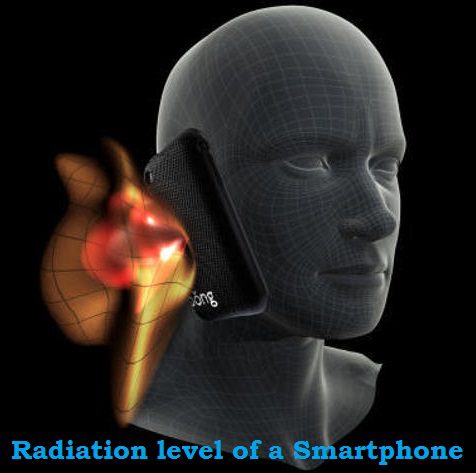
Smartphone has so much penetrated radiation_levelin our daily life that now no one can think of without it. Excessive use of smartphone may cause health problems but if you are even using less a smartphone with bad SAR, that is most dangerous.
Here SAR stands for Specific Absorption Rate which is a measure of the amount of radio frequency energy absorbed by the body when using a mobile phone. Federal Communications Commission (FCC) has adopted limits for safe exposure to radio frequency (RF) energy  which is  1.6 watts per kilogram (1.6 W/kg).  Any smartphone  at or below this SAR levels is “safe” to use.
You can check Radiation level in terms of SAR of your smartphone by dialing a USSD code *#07#, if results shows SAR below 1.6 watts per kilogram (1.6 W/kg) then it is OK otherwise you are advised to change your smartphone immediately

 *#06# : It shows the IMEI number of your phone which is a 15 digit unique number for your phone, basically it is  Social Security number of your phone. Sometimes when typing in *#06# it will add an additional 2 digits at the end. The first 15 digits shown before any space or dash is your IMEI. Note down IMEI number of your phone in your diary, it is very useful when your phone got stolen.

Monday, 7 September 2015

Liberland Coat of armsFree Republic of Liberland is a sovereign state located between Croatia and Serbia on the west bank of the Danube river. The nearest towns are Zmajevac (Croatia) and Bački Monoštor (Autonomous Province of Vojvodina, Serbia). On some maps, this area is referred to as “Gornja Siga”.
Liberland came into existence due to a border dispute between Croatia and Serbia. This area along the west bank of the Danube river is not claimed by Croatia, Serbia or any other country. It was therefore terra nullius, a no man’s land, until Vít Jedlička seized the opportunity and on 13 April 2015 formed a new state in this territory – Liberland. The boundary was defined so as not to interfere with the territory of Croatia or Serbia. Its total area of approximately 7 km² is now the third smallest sovereign state, after the Vatican and Monaco.
The motto of Liberland is “To live and let live” because Liberland prides itself on personal and economic freedom of its people, which is guaranteed by the Constitution, which significantly limits the power of politicians so they could not interfere too much in the freedoms of the Liberland nation.

How to become a citizen of Liberland

Do you want to become a citizen of Liberland? Liberland is currently accepting applications for citizenship, which will be processed in due time.

Who is needed in Liberland?

Liberland currently needs people who:
  • have respect for other people and respect the opinions of others, regardless of their race, ethnicity, orientation, or religion
  • have respect for private ownership which is untouchable
  • do not have communist, nazi or other extremist past
  • were not punished for past criminal offences

How to apply?

Please, find the citizenship application form here: Citizenship application form.
https://liberland.org/